This is the screen that makes self-check-in worth having. The patient did the typing; you do the judgement. Nothing they said reaches the chart until a human agrees to it.
The list
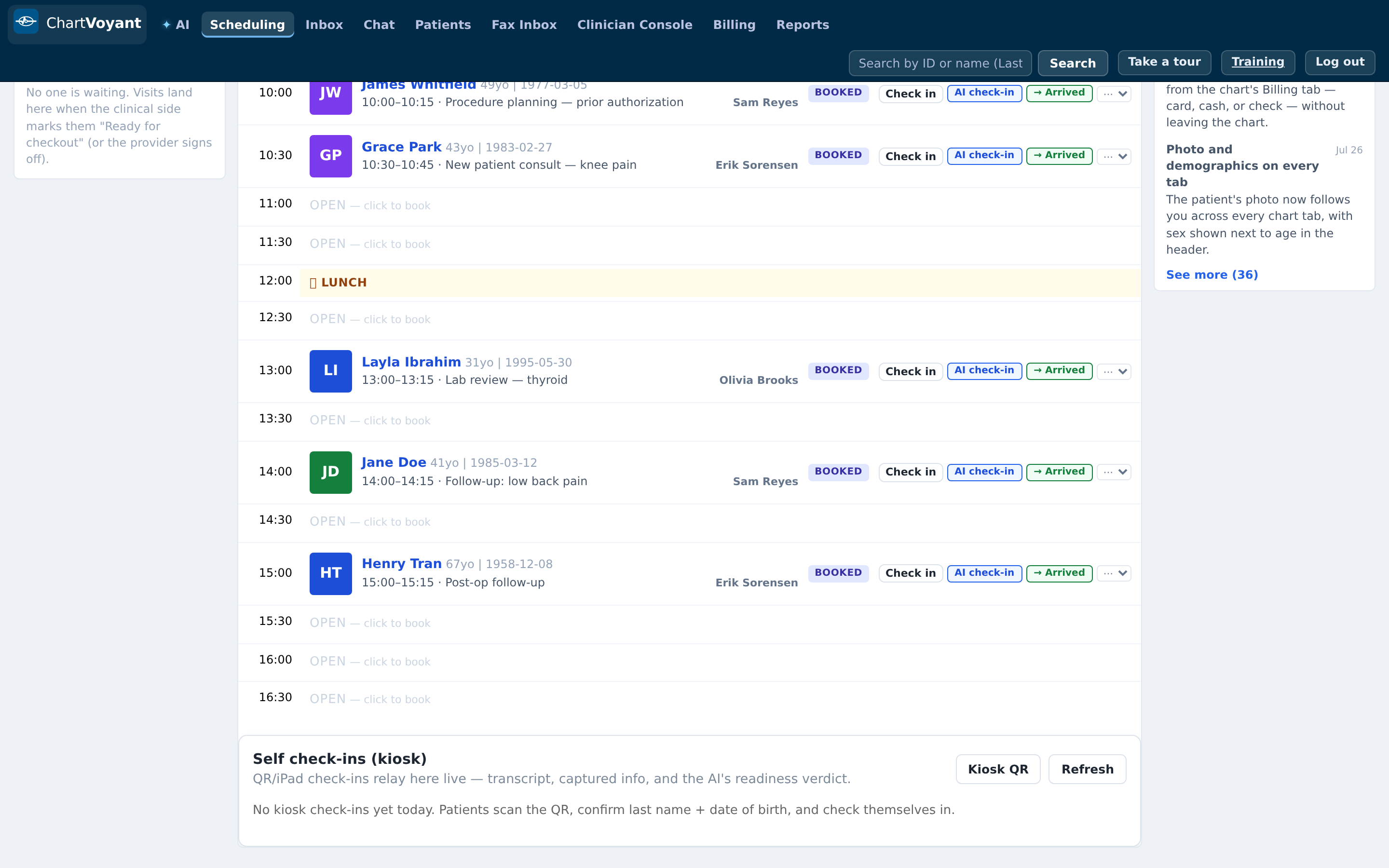
The Self check-ins (kiosk) panel at the bottom of Scheduling shows the day's arrivals: QR/iPad check-ins relay here live — transcript, captured info, and the AI's readiness verdict. It refreshes itself every 30 seconds.
Columns: Checked in, Patient, Appt, Mode, AI verdict.
Mode tells you how they answered — 🎤 voice, 🎤+⌨ mixed, or ⌨ typed.
AI verdict is the one to read. Green Ready to room means nothing is outstanding. Amber Needs: Insurance member ID — or whatever is missing — means the patient needs you before they go back.
Each row has Review and Room →. If the verdict is green, Room → advances the visit and you're done. If it's amber, open Review first.
The side-by-side review
Press Review to open Review & apply to chart. The table has four columns:
Apply · Field · On file · From check-in
Left is what the chart already holds. Right is what the patient said, in an editable box. The checkbox decides whether that row gets written.
Screenshot pending capture
The rows you'll see:
| Field | Notes |
|---|---|
| Insurance | Usually the row that matters |
| Member ID | Check it against the card, not just the typing |
| Phone (auto-saved) | Already written — unticked by default |
| Email (auto-saved) | Already written — unticked by default |
| Pharmacy (auto-saved) | Already written — unticked by default |
| Reason for visit | Its "On file" cell reads → appointment |
| Pain (HPI) | A summary, e.g. pain now 7/10 · avg/wk 5/10 · Low back · med changes |
| Review of systems | no new changes reported when nothing was positive |
Tick what should land, correct anything mistyped, then press Apply to chart.
You get back exactly what was written: Applied to chart: Insurance, Member ID, Reason for visit. Once applied, a green chip shows ✓ Applied 09:14 with the field list, and the button becomes Re-apply to chart.
Screenshot pending capture
What else is on the review
Confirmed against record: name · DOB [date] — the identity check the kiosk performed.
Still missing: … — anything the patient couldn't supply. This is your to-do list before they're roomed.
Conversation transcript (N turns) — the actual exchange, prefixed Patient: and Assistant:. Worth opening when a captured value looks odd; usually the transcript explains it.
Housekeeping
Rows can be removed from the list with ✕ — Remove [name]'s check-in from the list? — or in bulk with Remove selected (N). This only tidies the working list; it doesn't undo what was applied to the chart or change the visit status.
What usually goes wrong
Pressing Apply to chart with everything ticked. You'll overwrite good data with a patient's guess. Read the On file column.
Rooming an amber verdict. Needs: Insurance means the visit will hit billing with a gap. Fix it while the patient is in front of you.
Trusting a member ID that was typed on a phone. Compare it to the card. This is the single most common source of a rejected claim two weeks later.
Skipping the transcript when something's weird. If the captured insurance is "same as before", the transcript tells you what they actually said.