The inbox is where work finds you. What makes it different from every other EMR inbox is that the buttons inside an item do the work — you book the appointment, send the message, or write the note without leaving the item.
The eight categories
Open the Inbox tab. Down the left, with live counts:
Urgent Tasks · Appointment Requests · Patient Cases · Orders / Rxs / Auths · Lab / Imaging · Clinical Documents · Admin / Phone Messages · Need Followup
Then Total, and below a heavier line, ↗ Sent — everything you've sent to somebody else. Sent isn't counted in your total, because it isn't your work any more.
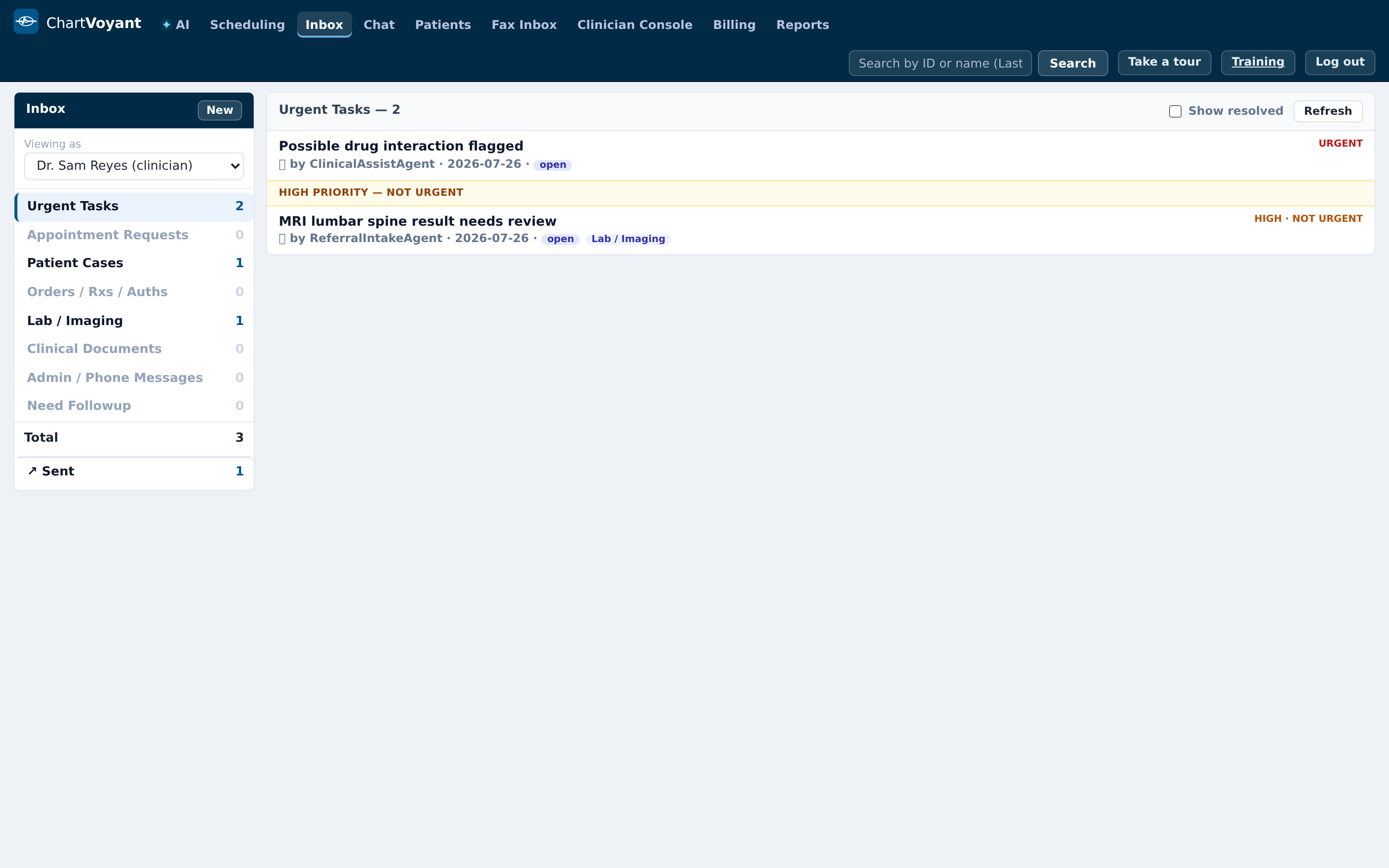
Two things about Urgent Tasks: it gathers urgent and high-priority cases from every category, and those items also stay in their own category. Seeing the same item twice is intentional, not a duplicate.
There's also a Viewing as selector at the top. It's how a supervisor looks at somebody else's queue — useful for covering a colleague who's out.
Working an item
Click an item. You get the subject, who raised it (a person, or
🤖 AIwhen an agent did), its status, who it's assigned to, and an Urgency selector.Three buttons decide what happens next: Acknowledge, Start working →, and Close — no action needed.
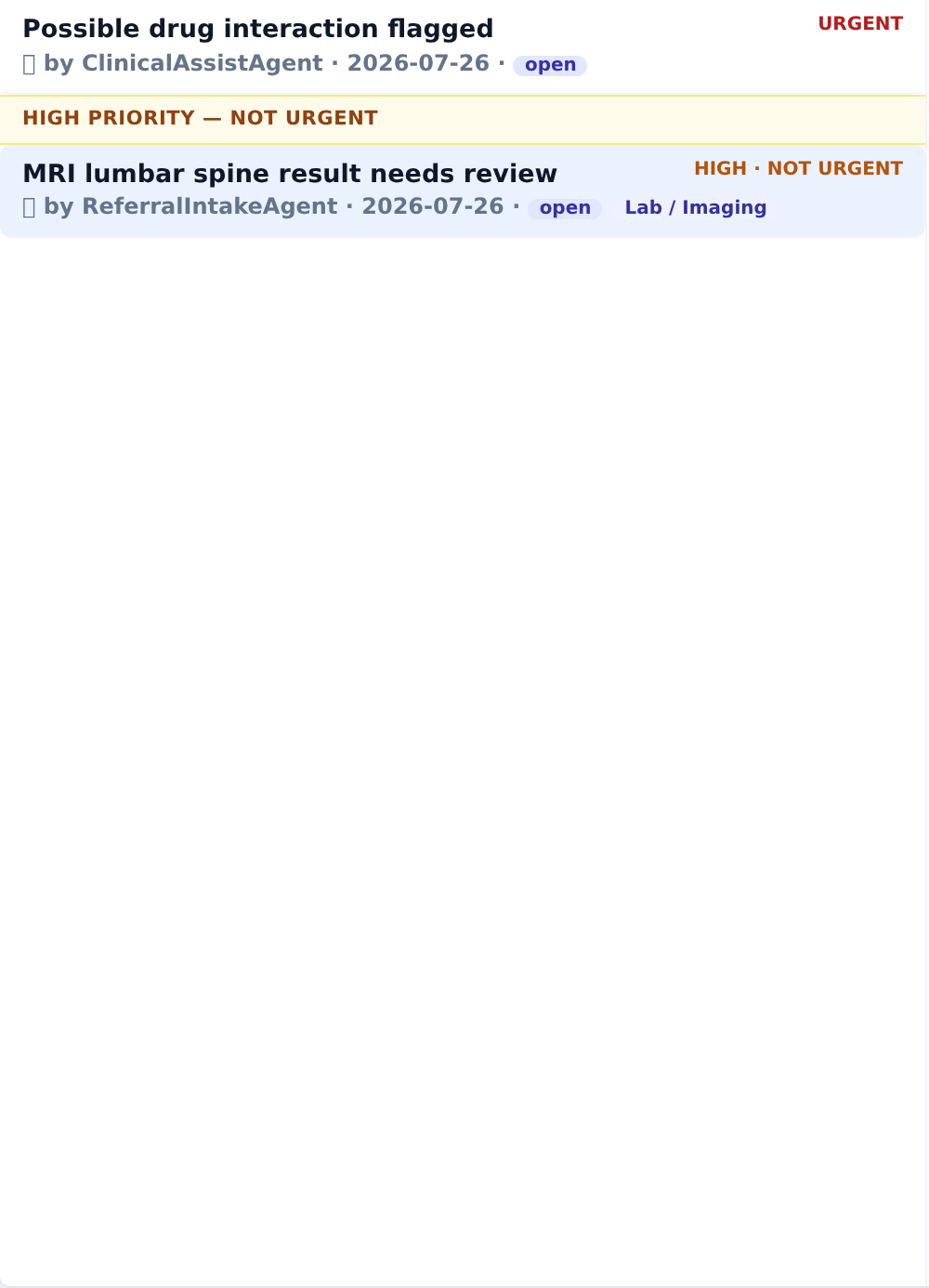
Press Start working → and the work panel opens: Do each step here — the controls below carry out the work. Steps tick themselves once done.
Every category gets three steps in plain English. An appointment request, for example:
- Review the request
- Find a slot and book the appointment
- Tell the patient
Each step has a real control under it. Step 2 gives you Book a slot, which opens provider, day, length and visit type, checks availability, and books — inside the item. Step 3 gives you Message the patient, which posts to their secure thread.
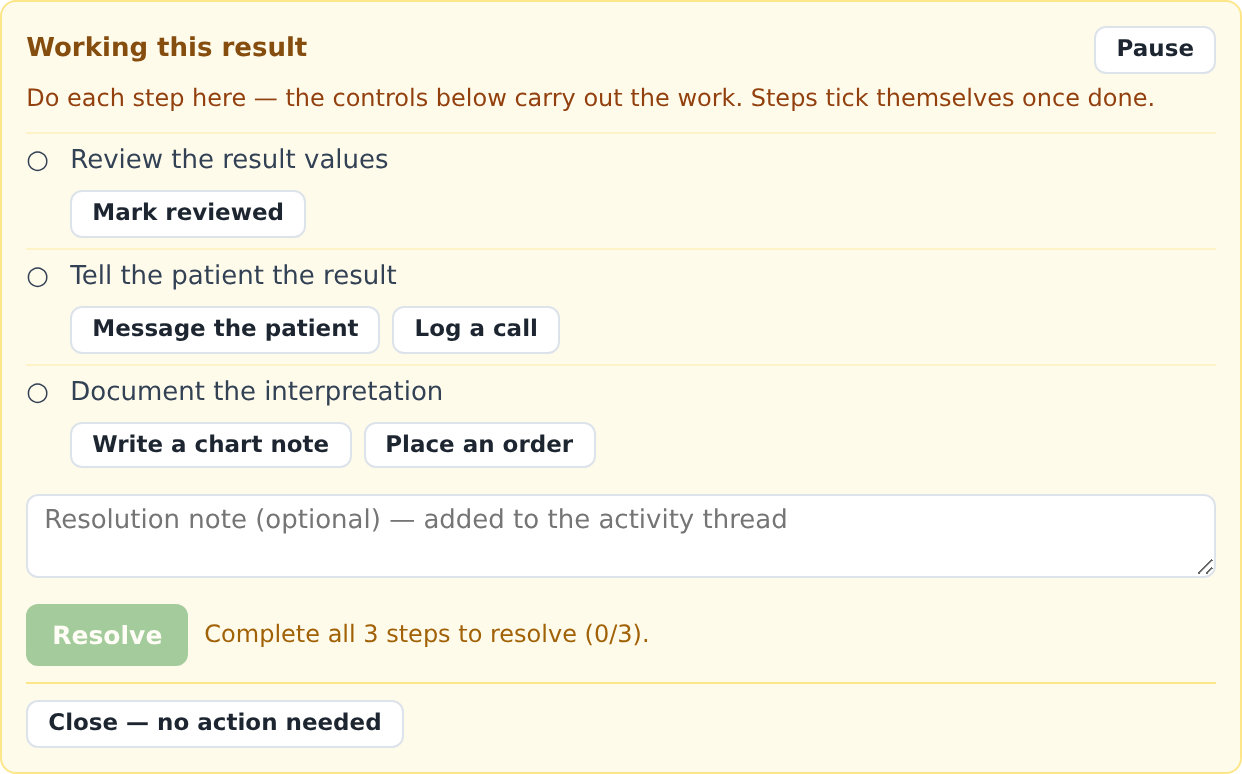
The nine action buttons you'll meet across the categories:
| Button | What it does |
|---|---|
| Mark reviewed | Logs a timestamped, attributed entry that you read it |
| Book a slot | Finds and books an appointment |
| Message the patient | Posts to the patient's secure thread |
| Log a call | Records a phone contact and its outcome |
| Prescribe / refill | Opens the prescribing form |
| Place an order | Opens orders |
| Send a fax | Composes an outbound fax |
| Write a chart note | Writes into the chart, optionally signed |
| Flag a clinician | Raises a linked high-priority task for a clinician |
When every step shows
✓you'll see Every step done — ready to resolve. Add a resolution note if it helps the next person, and press Resolve.Until then the button is disabled and tells you what's outstanding — Complete all 3 steps to resolve (1/3).
Closing something that needs nothing
Plenty of items arrive that need no action — a normal result already discussed, a duplicate, a fax filed to the wrong patient. Use Close — no action needed and choose a reason:
No action needed · Normal / expected — no follow-up required · Duplicate of another item · Filed in error — not for this patient · Already handled outside the system · No longer relevant
The reason goes on the activity thread. This is the honest path — better than walking the steps to make the resolve button light up.
Handing it on
Send to staff routes an item to anyone on staff and it moves to their inbox. It then appears in your ↗ Sent, so you can still see where it went. Use this rather than mentioning it in passing at the desk.
Flag a clinician is different: it raises a new linked high-priority task in a clinician's inbox and the original stays with you. Use it when you need a clinical opinion but the item is still your job.
Action Notes
Inside an item is an Action Notes log — short entries about attempts and contacts, in the same shorthand a phone log uses. The placeholder shows the house style: Log an attempt or action (e.g. 1ST ATTEMPT-LVM)…
You can Pin to top the one that matters, which then shows as 📌 Last Note at the top of the item. Pin the thing the next person needs to know — that the patient asked to be called after 3pm, say — not the first note you wrote.
What usually goes wrong
Doing the work somewhere else. Booking the appointment on the Scheduling tab means the step never ticks and the item can't be resolved. Book it from inside the item.
Leaving items acknowledged forever. Acknowledge means "seen", not "handled". Acknowledged items stay in your queue.
Not using Sent. People re-do work because they forget they passed it on. Check ↗ Sent before chasing something.
Writing the whole story into the subject line. The subject is for finding it. The detail belongs in the body and the action notes.