Almost everything starts with finding a person. There are three ways to type a patient, and ChartVoyant decides which one you meant by a fixed set of rules. Knowing the rules removes most of the frustration.
The three ways to search
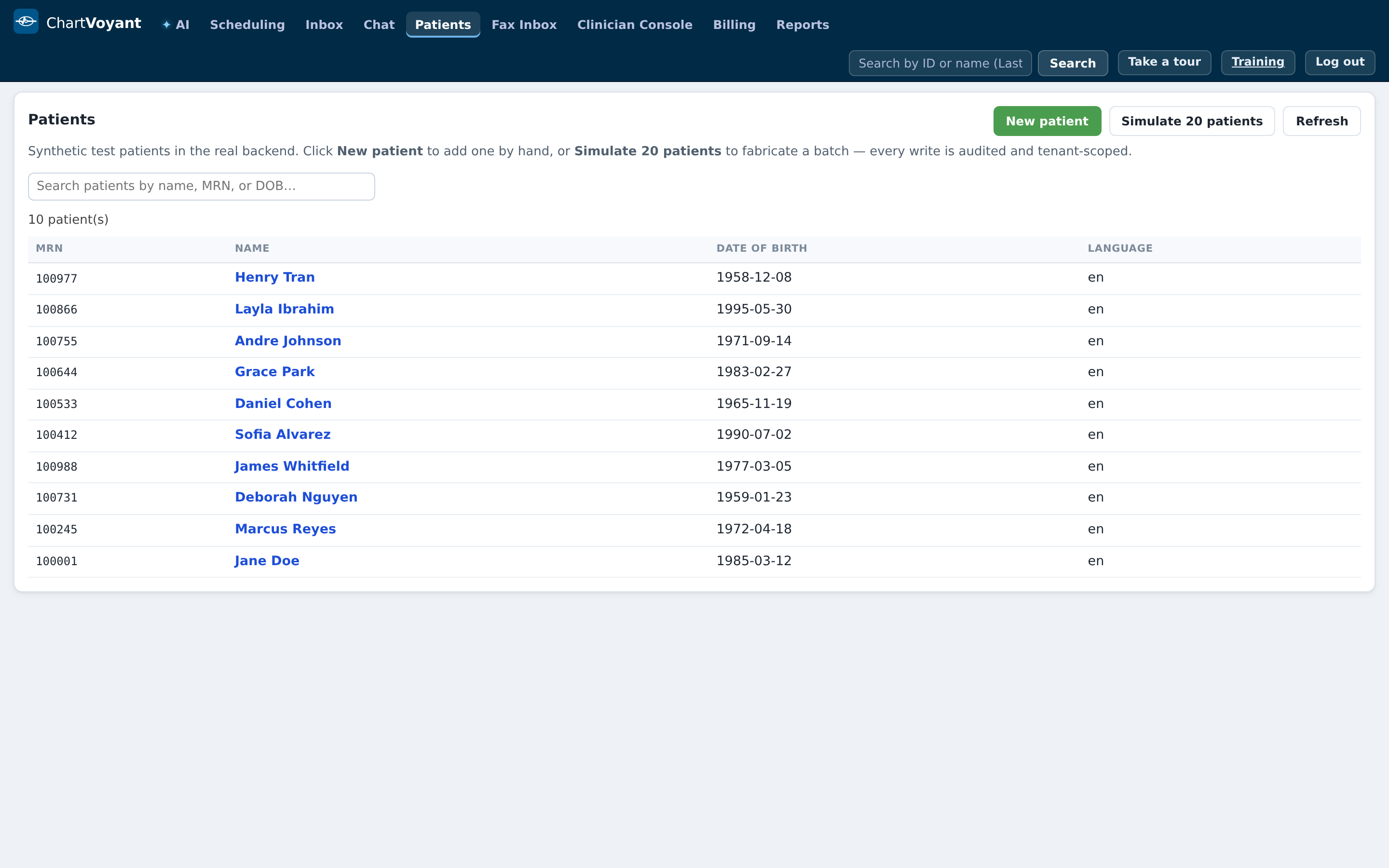
Open the Patients tab. The search box reads Search patients by name, MRN, or DOB… and the list below shows MRN, Name, Date of birth and Language.
Click a name to open that patient's Quick View.
Or use the search box in the top bar from anywhere: Search by ID or name (Last, First)…
One match opens the patient. Several matches give you the Search results page — the same people, listed Name, MRN, Date of birth, Language — where you pick the right one.
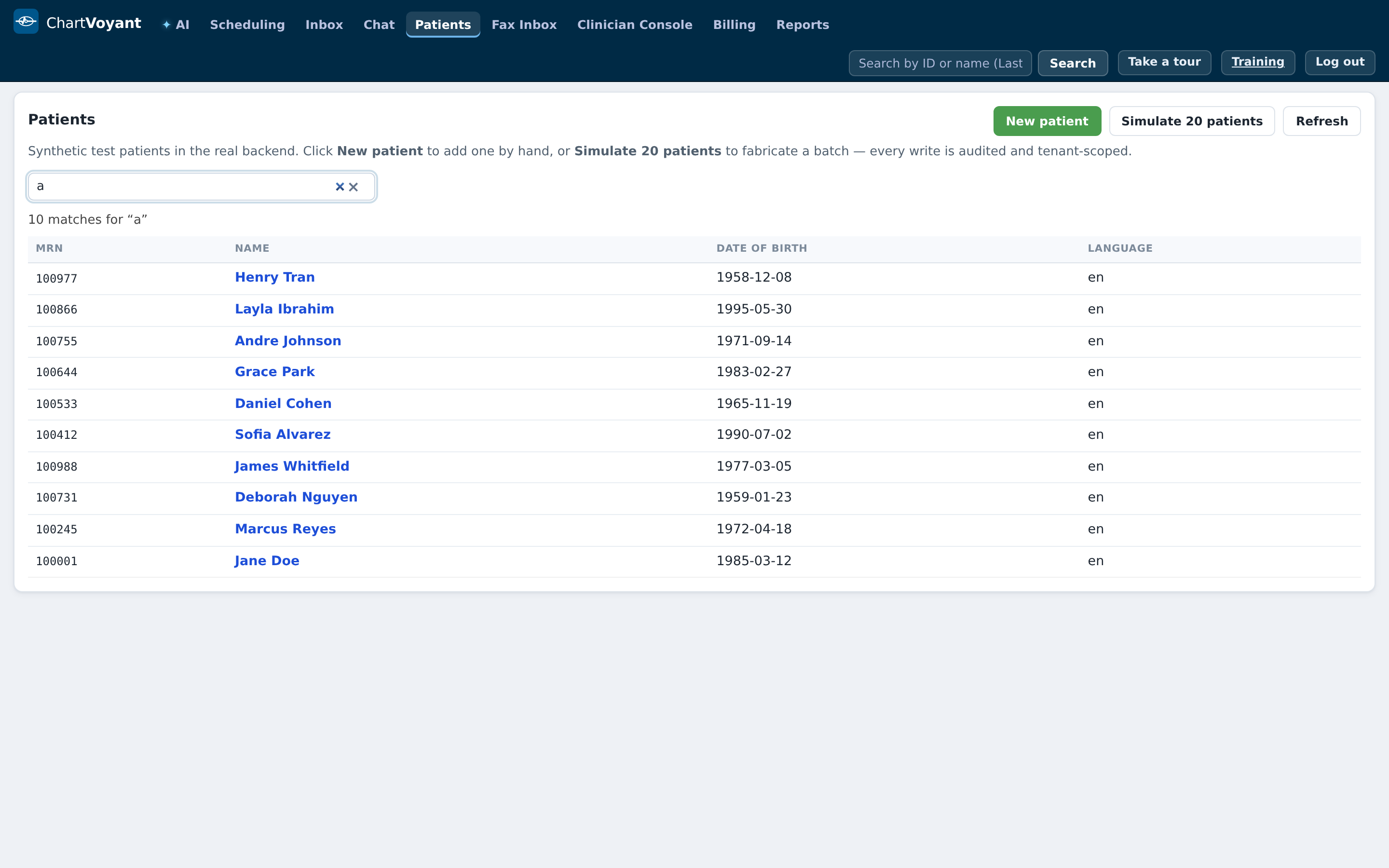
What your typing means
| You type | Read as | Notes |
|---|---|---|
104283 | MRN | Exactly six digits, first digit 1–9. Checked first, always |
#104283 | MRN | A leading # is ignored |
Reyes, Marcus | Name | Order-independent, partial words, case-insensitive |
marcus reyes | Name | Same result as above |
03/12/1985 | Date of birth | Also 3/12/1985, 03/12/85, 1985-03-12 |
1985 | Date of birth | Year alone works |
03/1985 | Date of birth | Month and year works |
MRNs at this practice are always six digits. If you're used to an EMR where the record number had letters in it, this one doesn't.
The four tabs for one patient
Once a patient is open, there's a second row of tabs that belongs to them:
- Quick View — the working summary: contact details, insurance and eligibility, ID photos, appointments, portal invite, what they told the kiosk at check-in
- Chart — the clinical record
- Scheduling — this patient's appointments
- Billing — this patient's balances, charges and claims
← Back to schedule on the right returns you to the day.
Reading the chart
Open Chart. Three things are worth learning here.
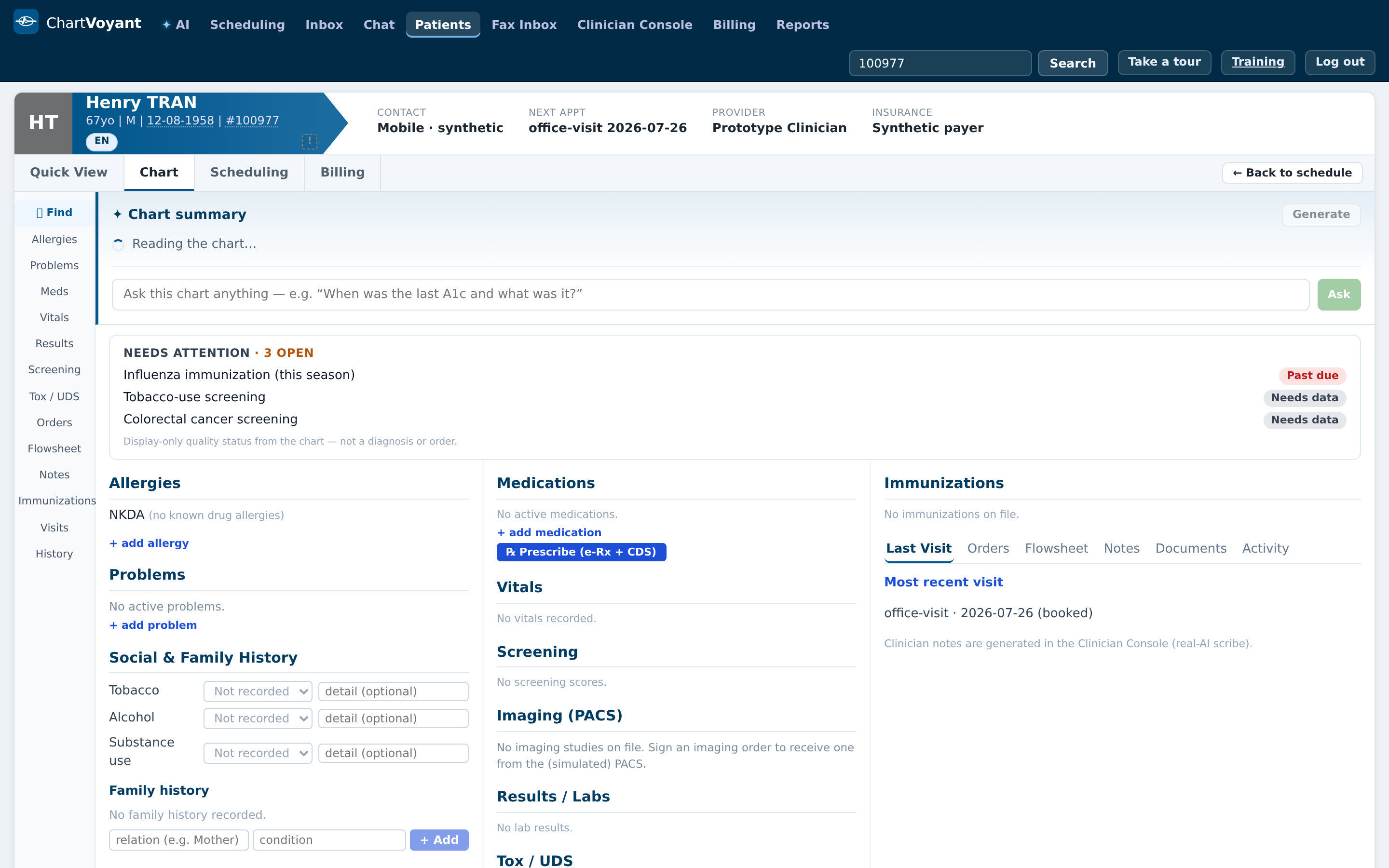
The header is the identity strip: photo or initials, name with the surname in capitals, then age, sex, date of birth, and
#MRN. The date of birth and the MRN are click-to-copy — handy when you're on the phone to a payer.The left rail is a jump list: Allergies, Problems, Meds, Vitals, Results, Screening, Tox / UDS, Orders, Flowsheet, Notes, Immunizations, Visits, History. Click one and it opens scoped to that kind of thing.
The body is three columns of the same sections, so a quick scan doesn't need any clicking: allergies and problems on the left; medications, vitals, screening, imaging, results and drug screens in the middle; immunizations plus a tab strip for Last Visit, Orders, Flowsheet, Notes, Documents and Activity on the right.
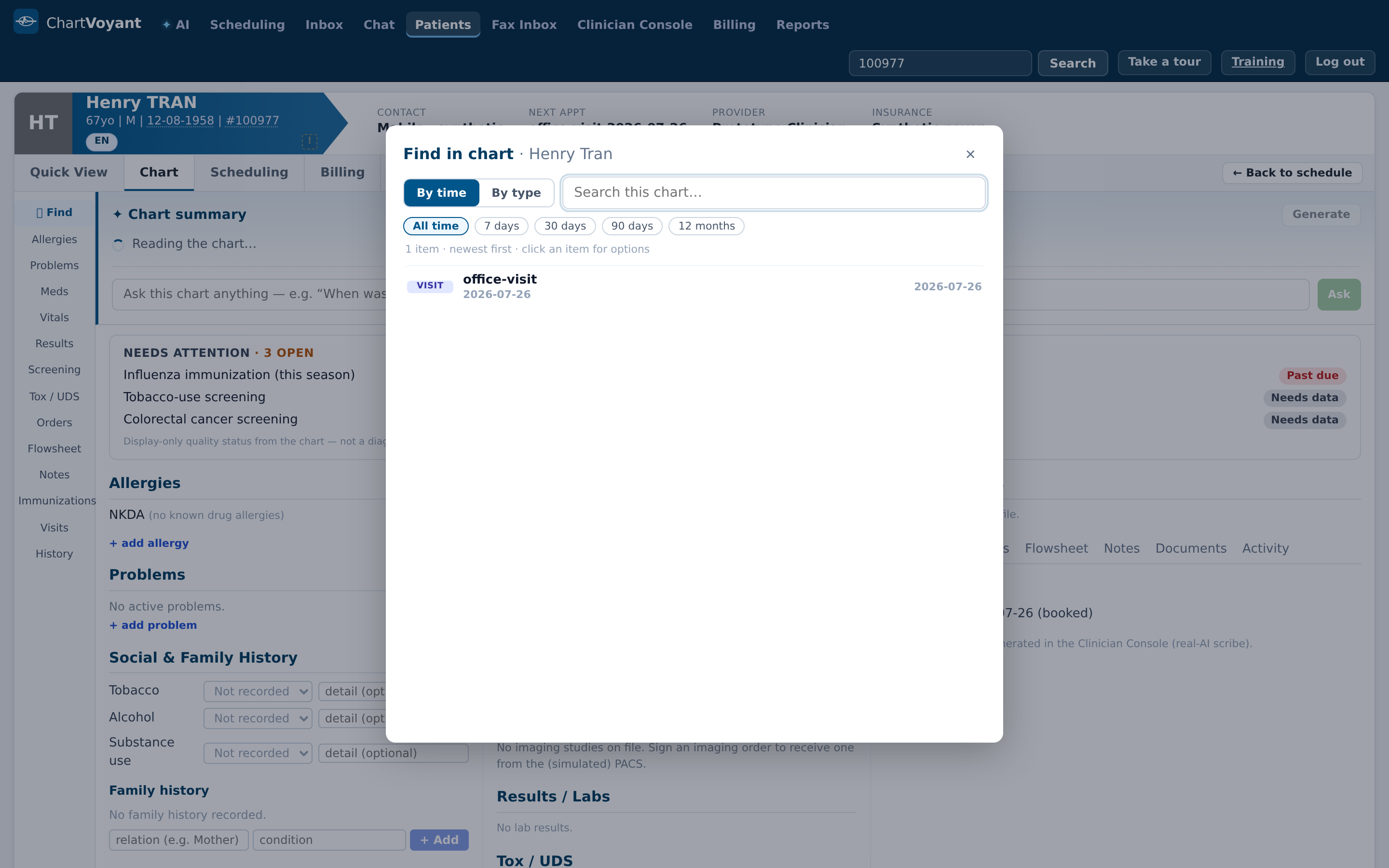
At the top of the left rail is 🔍 Find. This is the one to remember: it searches the whole chart at once.
Two view modes — By time and By type — and time chips for All time, 7 days, 30 days, 90 days, 12 months. Use it instead of opening six sections looking for one lab value.
Above the columns you'll also see ✦ Chart summary, an AI-written précis of the record with a Keep an eye on section and a box where you can ask the chart a question. Same rule as everywhere: it's a reading aid, and anything clinical gets verified against the source.
What usually goes wrong
Typing a partial MRN. Five digits isn't an MRN, so it falls through to the other rules and matches nothing useful. Type all six.
Expecting a middle name to help. Search looks at first and last name. A middle name in the box will usually stop you finding anyone.
Searching the whole practice when you meant today. If you're looking for someone who is in the building right now, the Scheduling day view is faster than search — they're on it, with their status.
Scrolling the chart looking for one result. Use 🔍 Find. It exists for exactly this.