Patients get in touch three ways: they phone, they walk in, or they use the portal. The portal is the one that doesn't interrupt anybody, so getting patients onto it is quiet, cumulative work that makes every other day easier.
Where patient requests land
Everything a patient sends through the portal becomes a case in your Inbox, attributed to Patient (portal):
| They do this | It arrives as |
|---|---|
| Request an appointment | Appointment Requests |
| Send a secure message | Patient Cases |
| Ask for a refill | Orders / Rxs / Auths, titled Refill request: [medication] |
You work these exactly as in the Foundations inbox lesson: Start working →, then the inline actions. For an appointment request that's Book a slot and then Message the patient — and your message lands on the thread they're already watching.
Inviting a patient to the portal
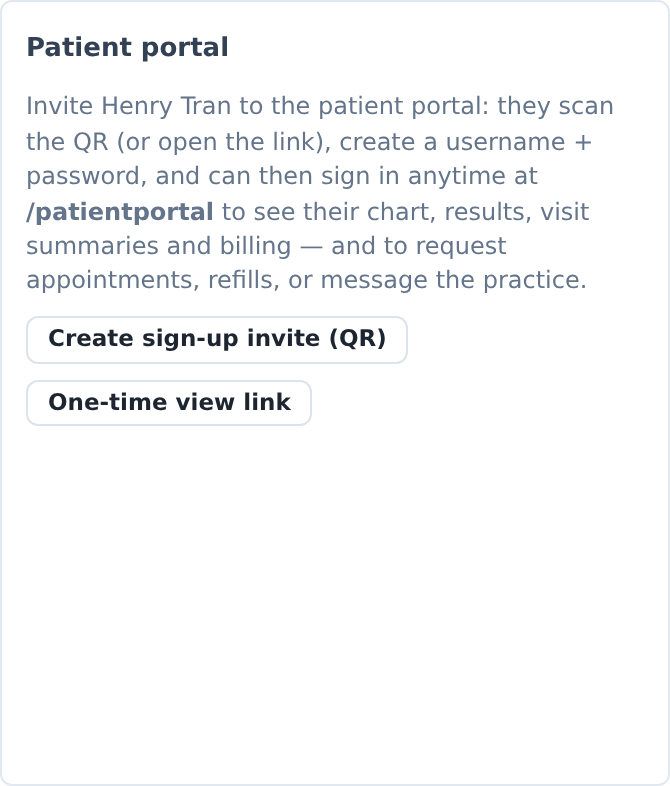
Open the patient's Quick View and find the Patient portal panel. It explains what the patient gets: they scan the QR or open the link, create a username and password, and can then sign in any time to see their chart, results, visit summaries and billing — and to request appointments, refills, or message the practice.
Press Create sign-up invite (QR).
You get a QR under Scan to create the portal account, the validity — Invite valid until [date] — and Copy link.
Hand the phone the QR, or press Copy link if you're on the phone with them and can paste it into something.
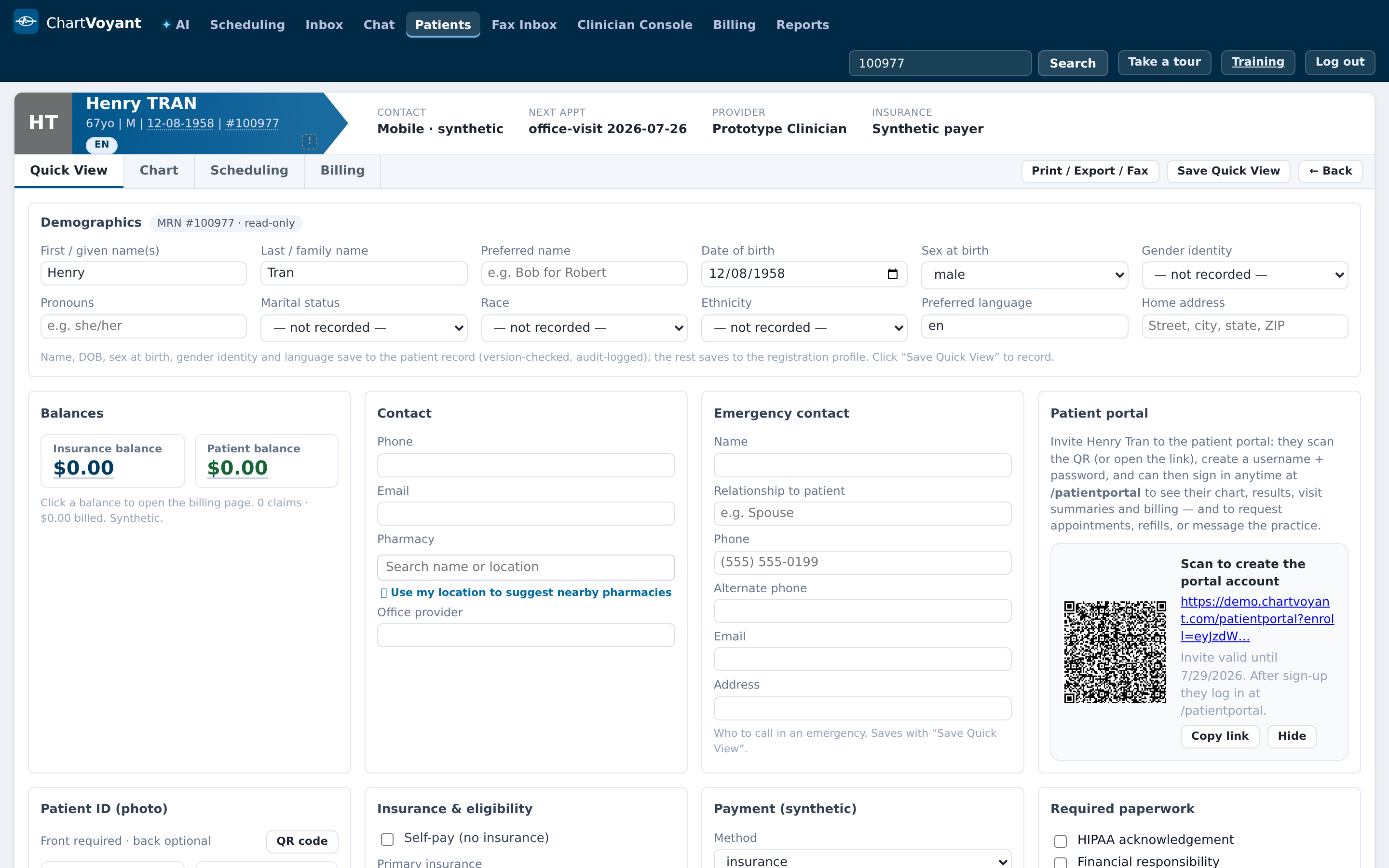
The invite lasts a few days by default. Nothing is sent for you: no email, no SMS. You hand it over.
There's also One-time view link, marked Legacy: a temporary view-only link — no account created. Use it only when someone needs to see something once and doesn't want an account.
What the patient does next
They land on Create your portal account: choose a username (3–40 characters; letters, numbers, dots, underscores or hyphens) and a password (At least 8 characters), then Create account & sign in.
After that they sign in at the practice's portal address whenever they like. Their portal has cards for Request an appointment, Send a secure message, refills, and My requests & their status — which shows Received, Seen by staff, In progress, Completed or Reopened.
That status list is why answering requests promptly is visible to the patient. They can see it sitting at Received.
The messaging card carries the safety line, and it's worth repeating to patients out loud: For emergencies call 911 — messages are answered during business hours.
Inbound faxes that need a human
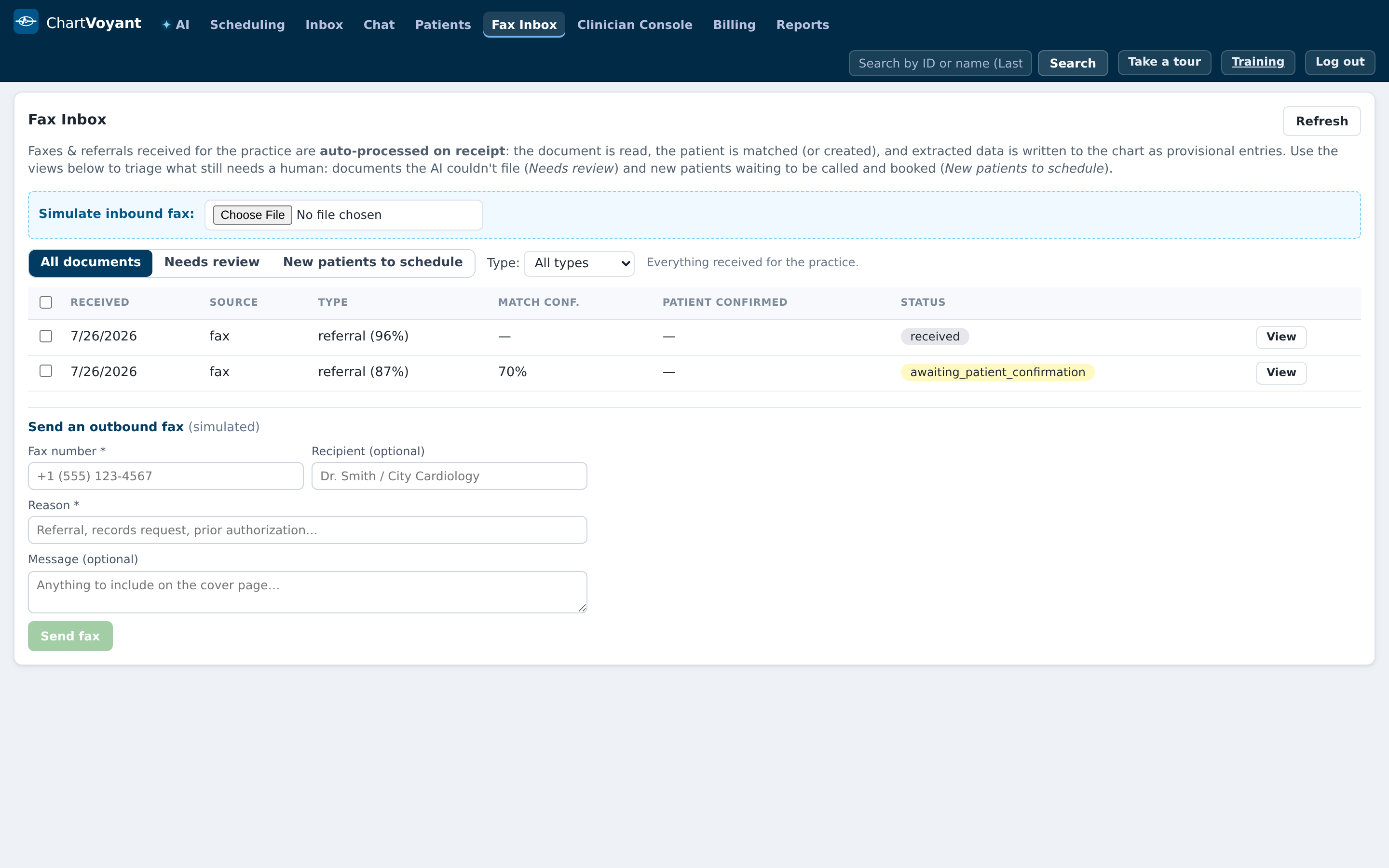
The Fax Inbox tab holds documents arriving from outside. Most are read, matched to a patient, and filed automatically. Three saved views split the work:
- All documents — everything received
- Needs review — The AI couldn't fully file these — a human needs to look them over
- New patients to schedule — New patients to call and book
The reason a document needs review is shown as a badge: No patient identified, Low match confidence, Low type confidence, or Auto-intake errored.
Open one and you'll see what the automatic pass concluded — New patient created, Matched existing patient, or No patient identified — plus what it wrote to the chart, marked provisional pending your review. Two buttons decide:
- Approve — correct patient & intake — you've checked the patient is right
- Reject — wrong patient / not needed — you'll be asked why, and the auto-created data is rolled back
Rejecting is clean: Rejected — rolled back 4 chart entries and removed the auto-created patient. Approving a wrong match is not clean — it puts one person's referral in another person's chart. When you're unsure, reject and let it come back rather than guessing.
Referrals for new patients also appear under New patients to schedule with Run Virtual MA to prep the call, then Mark scheduled once they're booked.
What usually goes wrong
Answering a portal message by phoning instead. Fine to phone, but log it — Log a call on the item — or the patient's request sits at Received and the next person re-does it.
Handing an invite to a patient who already has an account. Read the warning.
Approving a low-confidence fax match to clear the queue. A misfiled document is a clinical safety problem. Reject when unsure.
Telling patients the portal will email them. It won't. They sign in.